
Grid 좌표 시스템
목차
1. 유니티 구현
1.1. ShaderGraph
1.2. Property
1.3. Node
1.4. ShaderGraph 적용
1.5. Grid
1.6 Grid Renderer
2. 전체 코드
유니티 구현
1.1. ShaderGraph
그리드를 시각화 하기 위해 PackageManager에서 ShaderGraph를 다운로드했다.
ShaderGraph는 그래픽 셰이더 코드를 직접 작성하지 않고도 시각적으로 구성할 수 있고, 더 직관적으로 셰이더를 조작하며 즉각적인 변화를 확인할 수 있기 때문에 사용하였다.
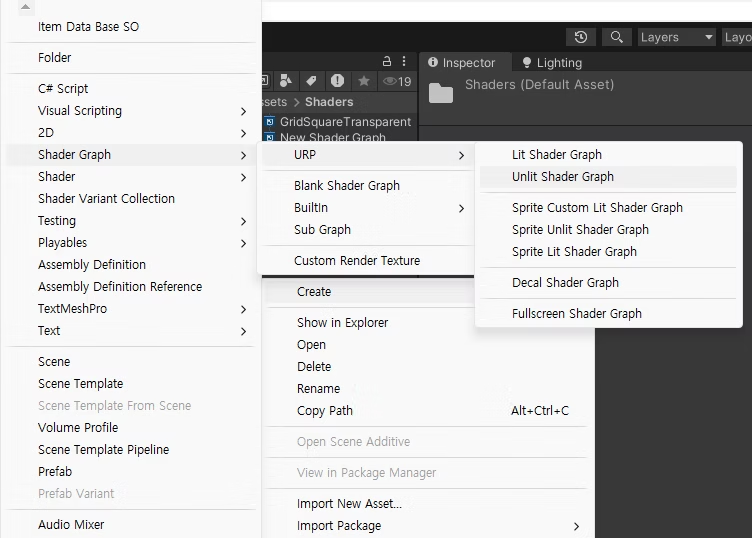
'Create >Shader Graph >URP >Unlit Shader Graph'를 선택하여 ShaderGraph를 생성한다.
여기서, Unlit Shader Graph는 빛과 관련된 계산이 제외되어, 빛의 영향을 받지 않으며, 자체적으로 정의된 색상과 텍스처만을 사용하여 물체의 사각적 표현을 제어한다.
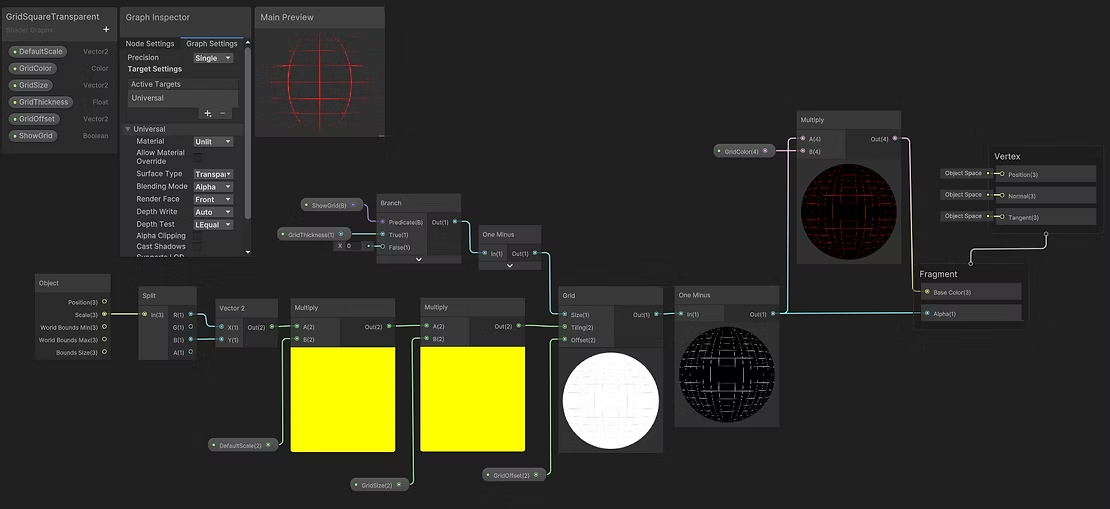
ShaderGraph는 크게 Property와 Node로 나뉜다.
1.2. Property
Property는 사용자 정의 값을 설정해 셰이더가 동작하는 방식을 유연하게 설정할 수 있다.
설정된 Property는 총 6개로, DefaultScale, GridColor, GridSize, GridThickness, GridOffset, ShowGrid가 있다.
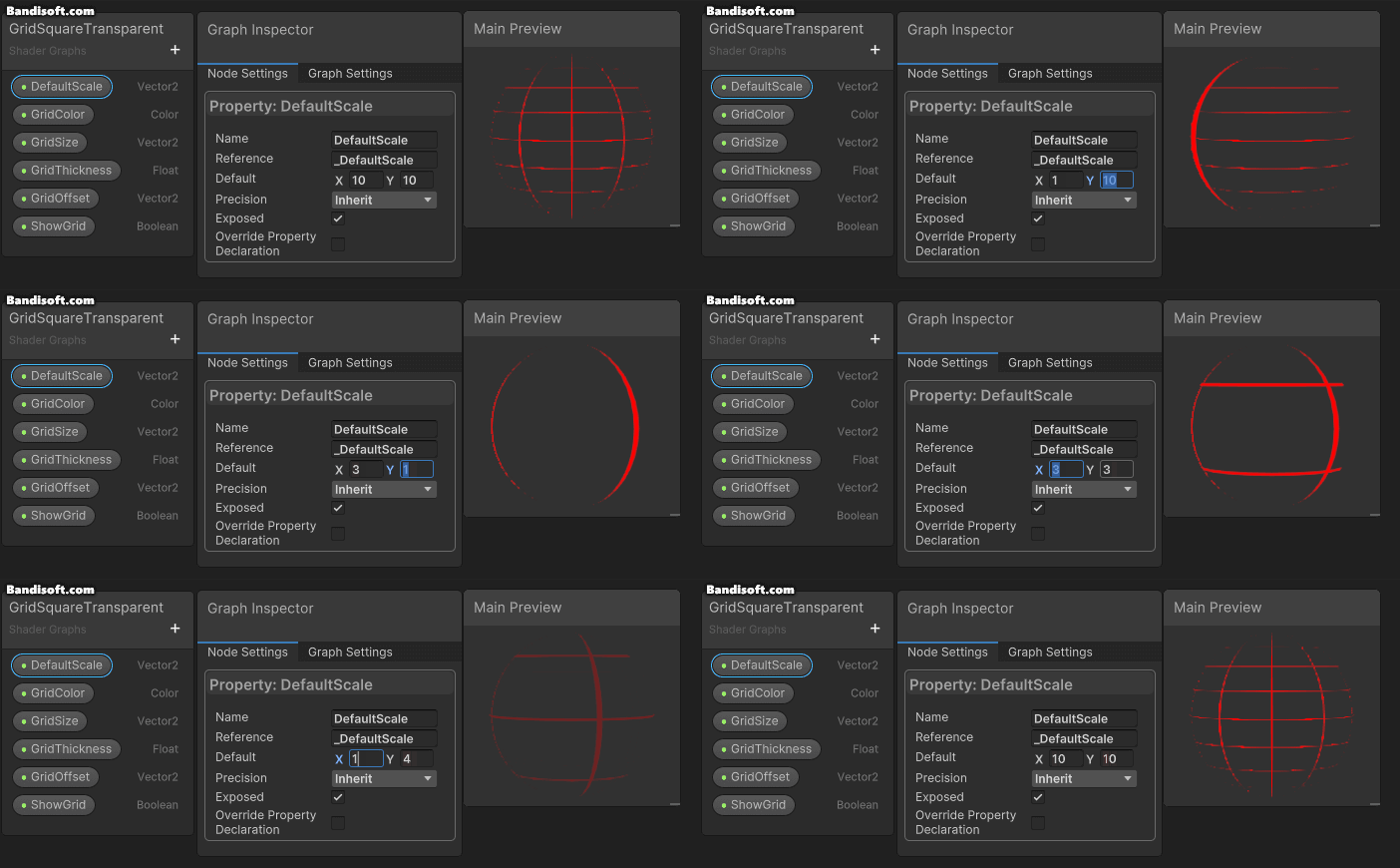
DefaultScale은 그리드의 기본 크기를 설정한다.
GetColor는 그리드의 색상을 결정한다.
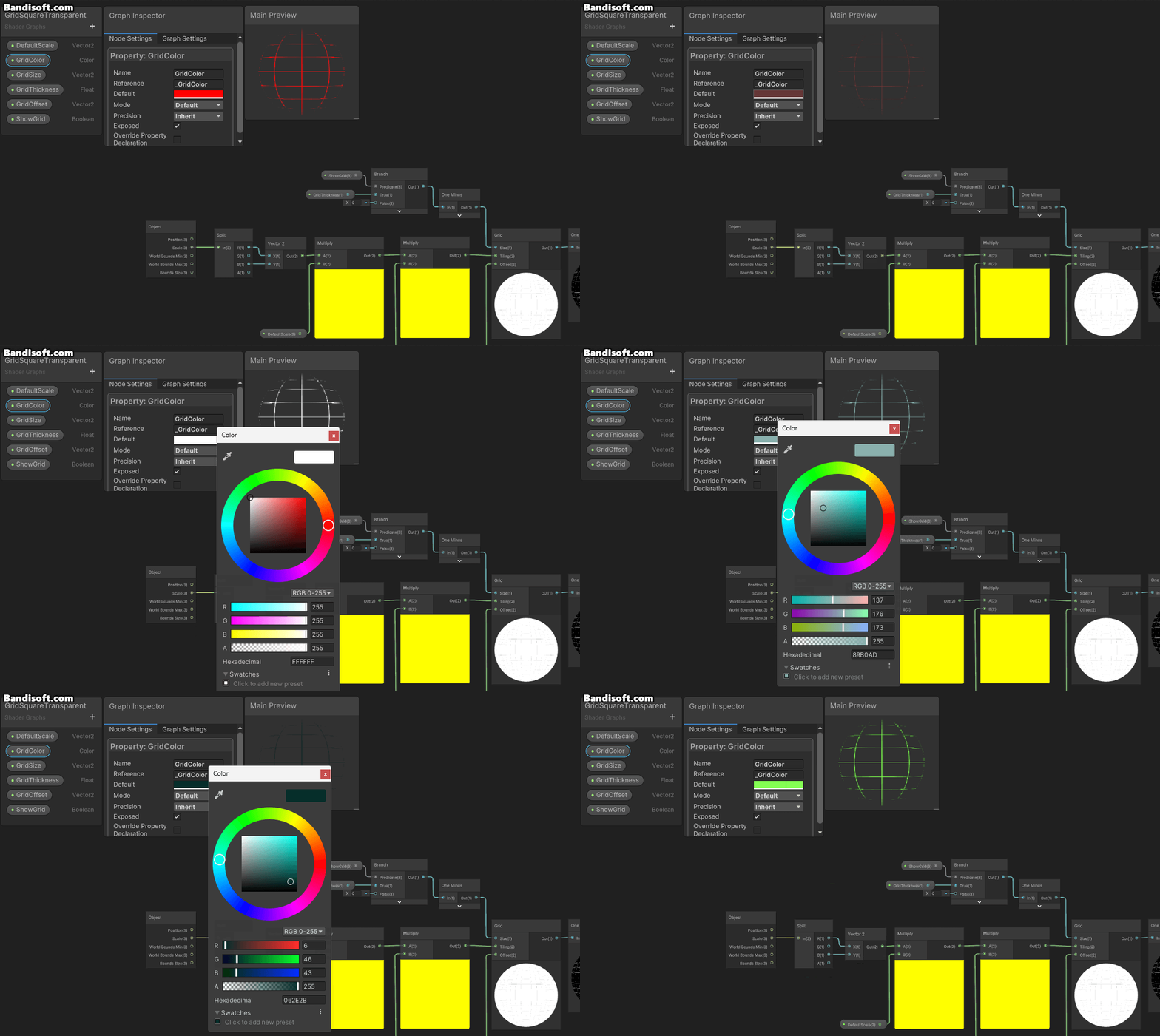
색상은 오브젝트를 설치할 때, 필요한 그리드 크기를 보여준다.
또한, 설치가 불가할 때 색상을 변경하기 위해서 추가하였다.

GridSize는 그리드의 크기를 결정한다.
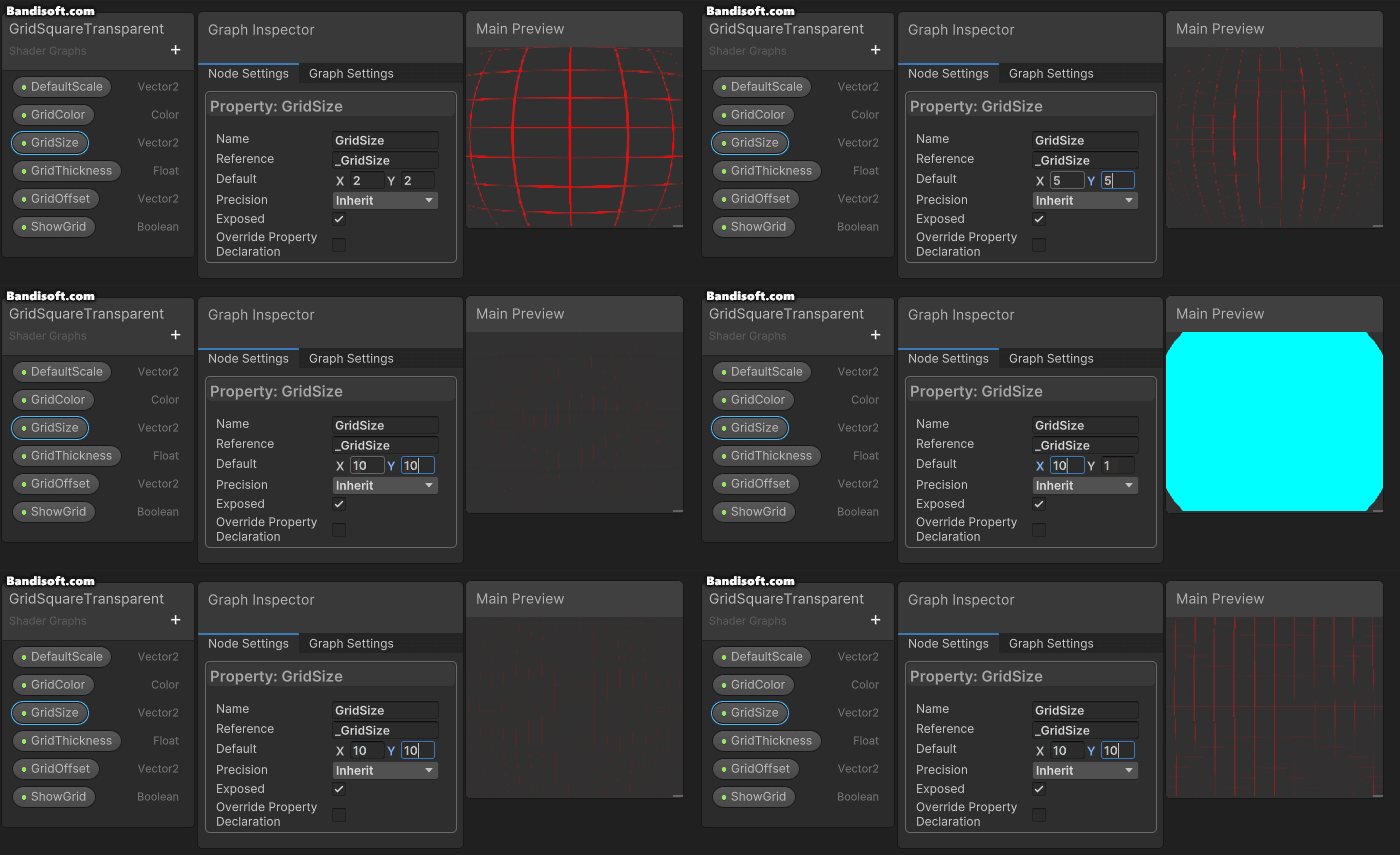
GridThickness는 그리드 선의 두께를 조절한다.
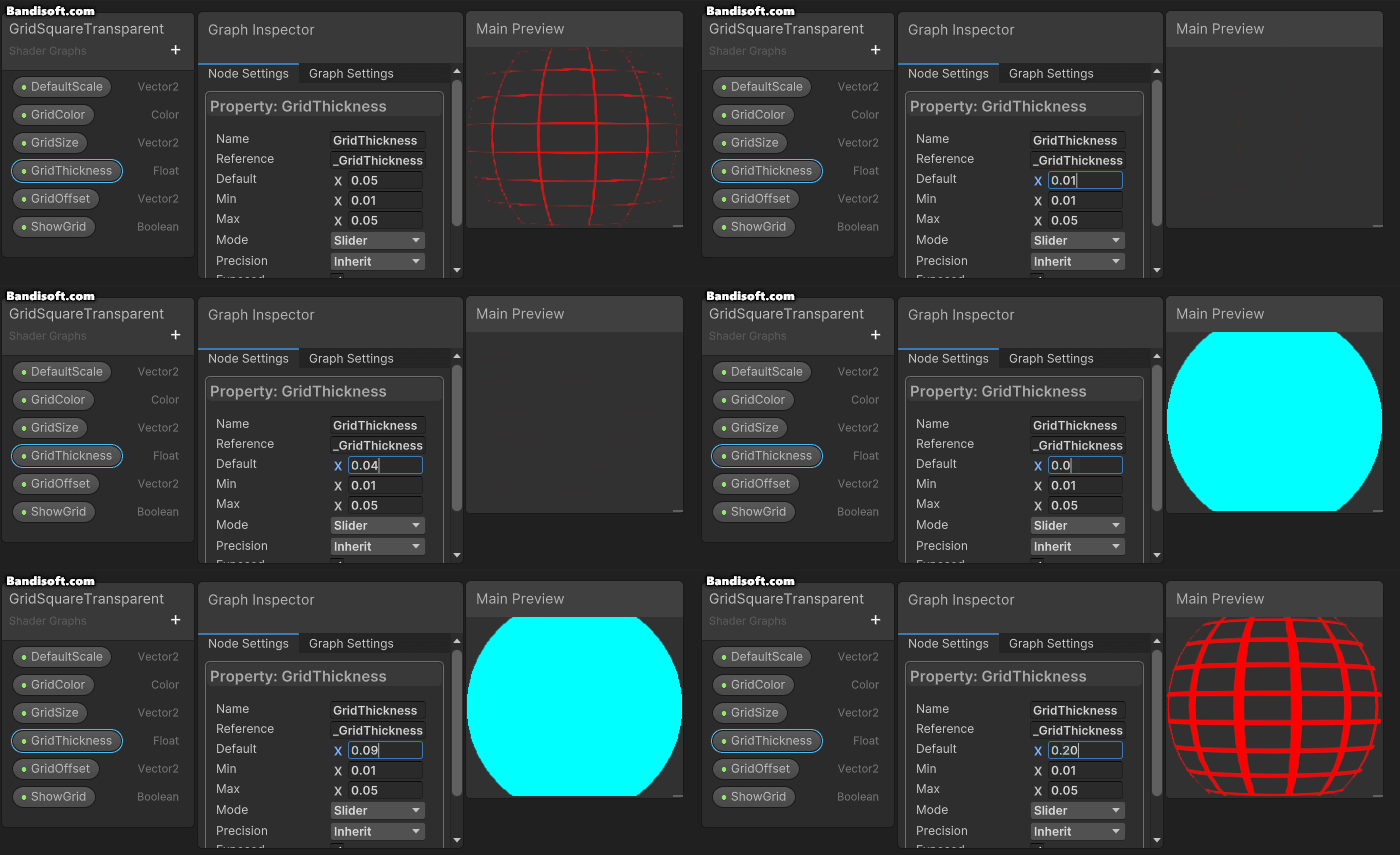
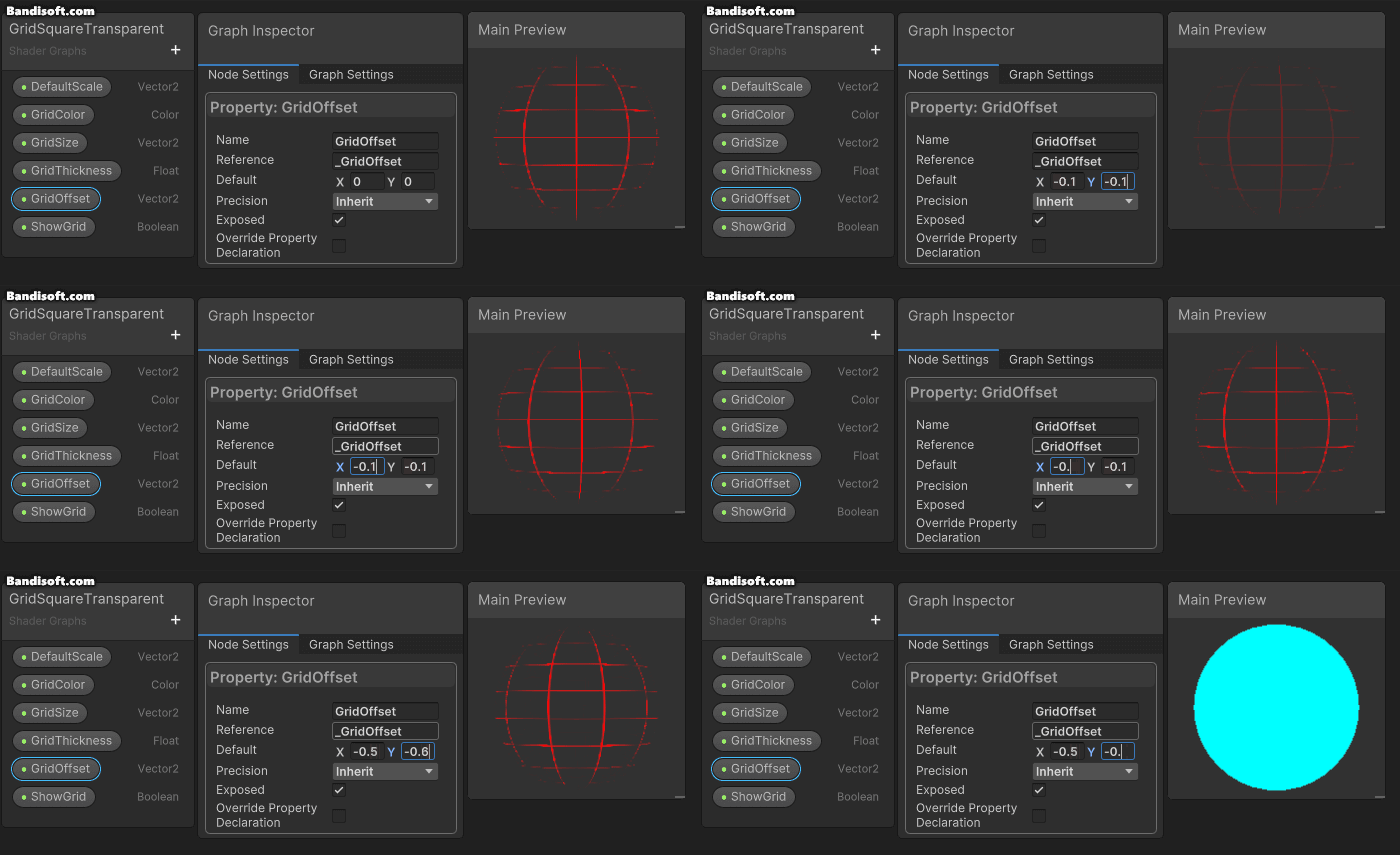
GridOffset은 그리드의 위치를 조정한다.
이는 그리드가 객체에 어떻게 표시될지의 시작점을 변경할 수 있게 하기 위함이다.
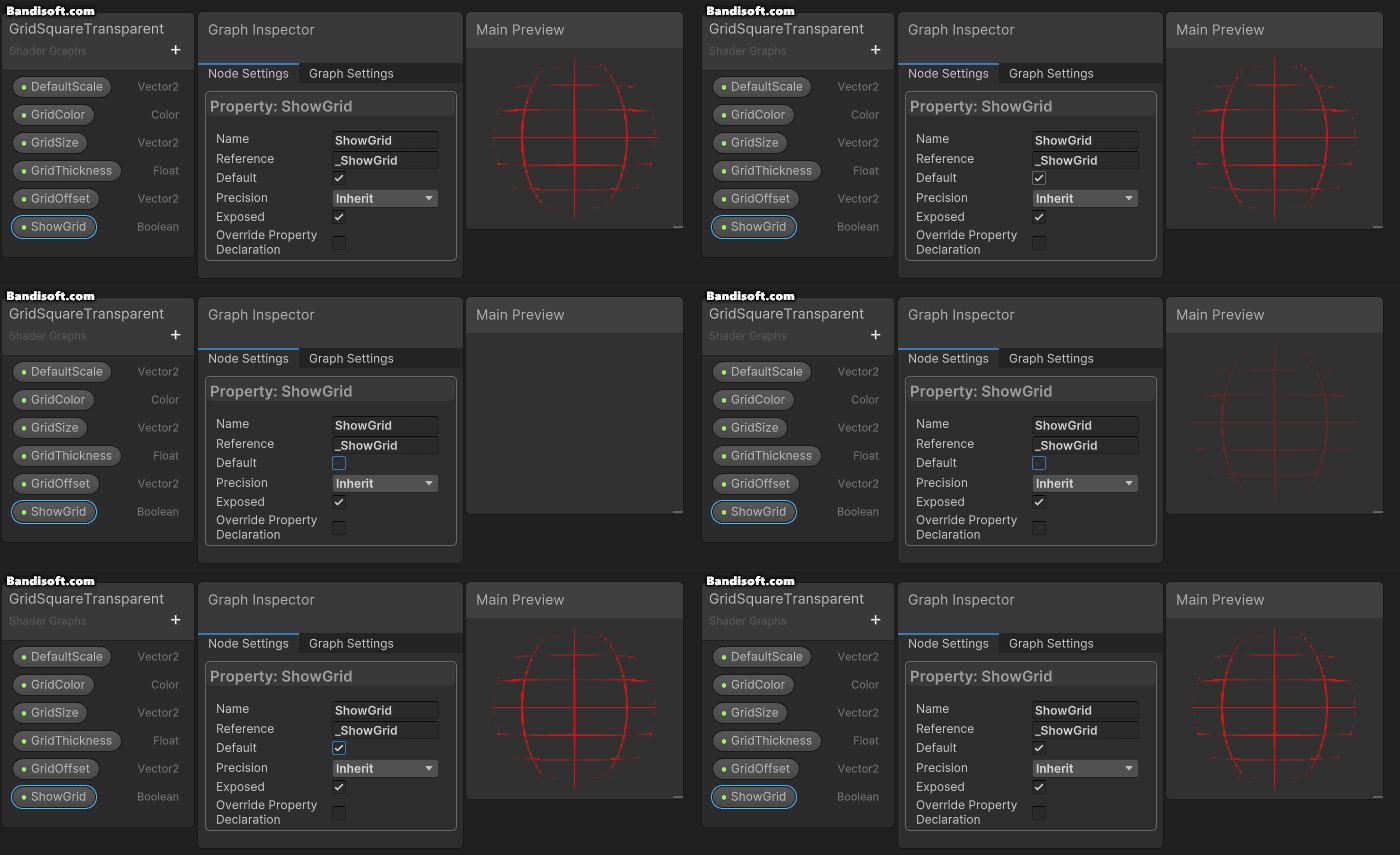
ShowGrid는 그리드를 표시할지 여부를 결정한다.
이는 필요에 따라 그리드를 활성화 / 비활성화 여부를 설정하기 위함이다.
1.3. Node
각 노드는 특정한 셰이더 기능을 정의한다.
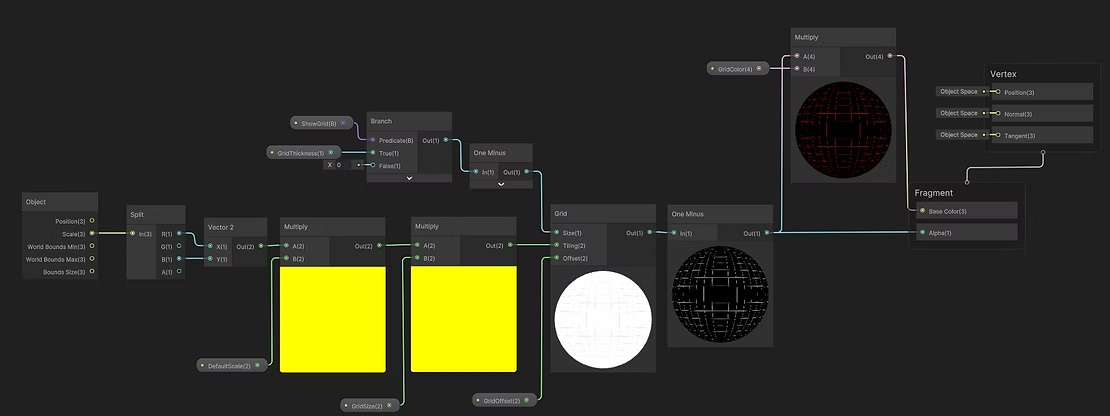
각 노드는 입력과 출력을 가지고 있으며, 이를 서로 연결하여 데이터 흐름을 만든다.
Object 노드는 셰이더가 적용된 객체의 기본 정보로, 객체의 변형(transform) 데이터를 입력으로 받아서 그 정보를 셰이더 내의 다른 노드로 전달할 수 있게 여러 출력을 생성한다.

Split 노드는 In입력 벡터를 개별적인 스칼라 값(R,G,B 및 A)로 분리한다.

Multiply 노드는 두 입력 값을 곱한 결과를 반환한다.

One Minus 노드는 입력된 값에서 1을 빼는 연산을 수행한다.
이는 알파 값을 반전시키거나 색상의 보색을 계산할 때 유용하다.

Vector2 노드는 두 개의 입력 값을 받아 하나의 2D 벡터를 생성한다.

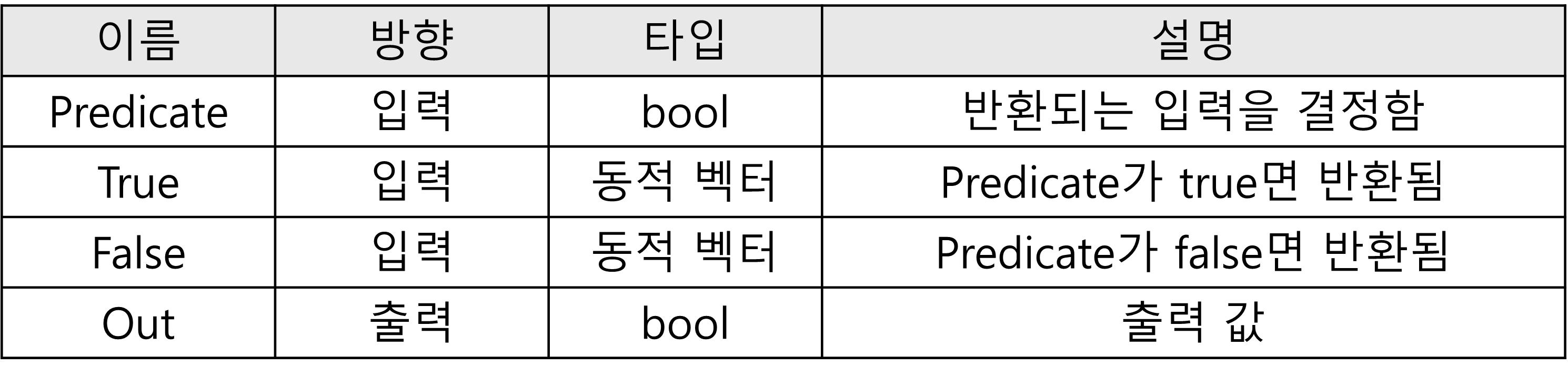
Branch 노드는 Predicate 입력이 true면 반환 출력은 True 입력과 같고, 그렇지 않으면 False 입력과 같다.
Branch의 양쪽 측면은 셰이더에서 평가되고, 사용되지 않는 Branch는 폐기된다.
전체적인 흐름은 다음과 같다.
Object 노드(Scale 속성) → Split 노드
오브젝트의 스케일 정보에서 x와 z 값(가로와 세로 스케일)을 분리하여, 그리드의 크기 조정에 사용된다.
이는 그리드가 오브젝트의 물리적 차원과 일치하도록 보장한다.
Split 노드 → Vector2 노드
분리된 x와 z 스케일 값을 Vector2로 병합하여, 이를 사용하여 그리드의 가로 및 세로 크기를 결정한다.
Vector2 노드 → Multiply 노드
Vector2(오브젝트의 수정된 스케일)와 DefaultScale을 곱하여, 그리드의 실제 시각적 크기를 조절한다.
Multiply 노드 → Multiply 노드
첫 번째 Multiply 노드의 출력(조정된 규모)을 사용자가 정의한 GridSize와 곱하여 그리드 크기를 더욱 미세 조정한다.
이 단계는 그리드의 밀도와 크기를 최종적으로 결정한다.
Multiply 노드 → Grid ( Tiling 속성)
계산된 최종 그리드 크기를 그리드 셰이더의 Tiling 속성에 적용하여, 적절한 타일링 크기를 설정한다.
이를 통해 그리드가 메쉬에 균일하게 표시되도록 한다.
Branch 노드 → One Minus 노드
ShowGrid와 GridThickness에 기반하여 그리드 두께를 1에서 빼는 방식으로 반전시키며, 더 얇은 라인을 강조할 수 있다.
One Minus 노드 → Grid ( Size 속성)
계산된 반전된 값을 사용하여 그리드의 실제 크기를 조정한다.
이 값은 그리드 셰이더의 Size 속성에 적용되어, 그리드 라인의 두께를 결정한다.
Grid → One Minus 노드
그리드 출력 값을 반전시켜 그리드 패턴 내에서 투명도를 반대로 적용하여, 패턴의 비어 보이는 부분을 강조한다.
One Minus 노드 → Multiply 노드 (A값 입력)
그리드의 색상과 결합하기 전 투명도 값을 조정하여, 최종 색상과 어떻게 혼할될지를 제어한다.
Multiply 노드의 결과 → Fragment의 Base Color 입력
계산된 색상과 투명도 값을 통해 메쉬에 그리드가 어떻게 보일지 최종 결정한다.
One Minus 노드의 결과 → Fragment의 Alpha 입력
그리드의 시각적 투명도를 조정하여, 그리드가 메쉬에 얼마나 눈에 띌지를 제어한다.
1.4. ShaderGraph 적용
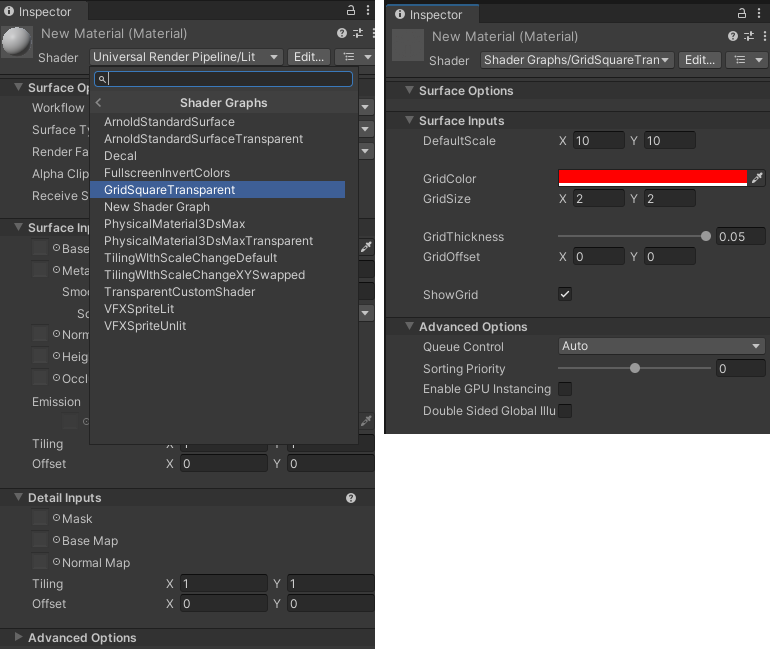
새로운 Material을 추가한다.
이때, Shader에서 'Shader Graphs > GridSquareTransparent' 를 선택하여, 그리드를 설정하는 Material로 만들어준다.
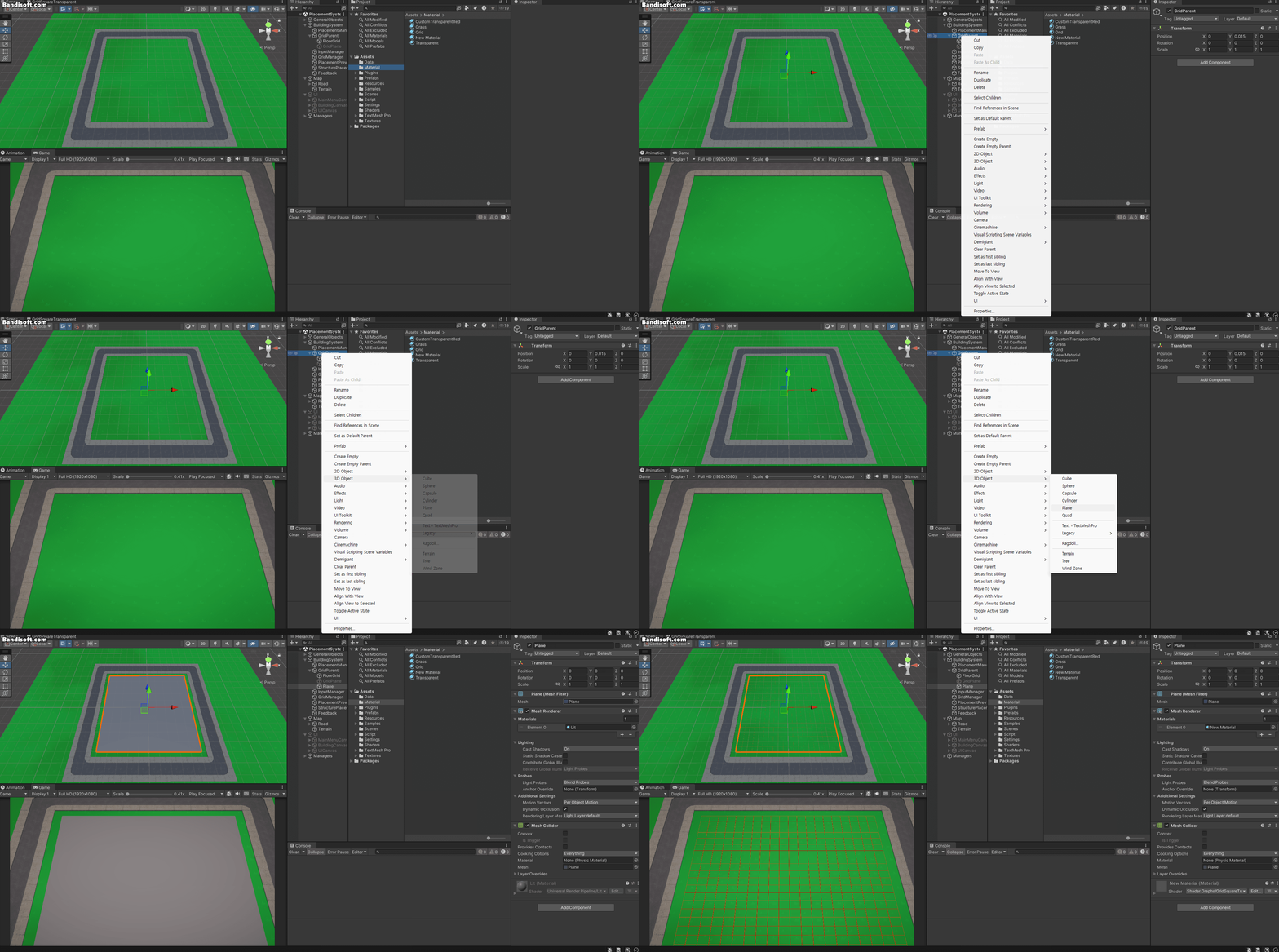
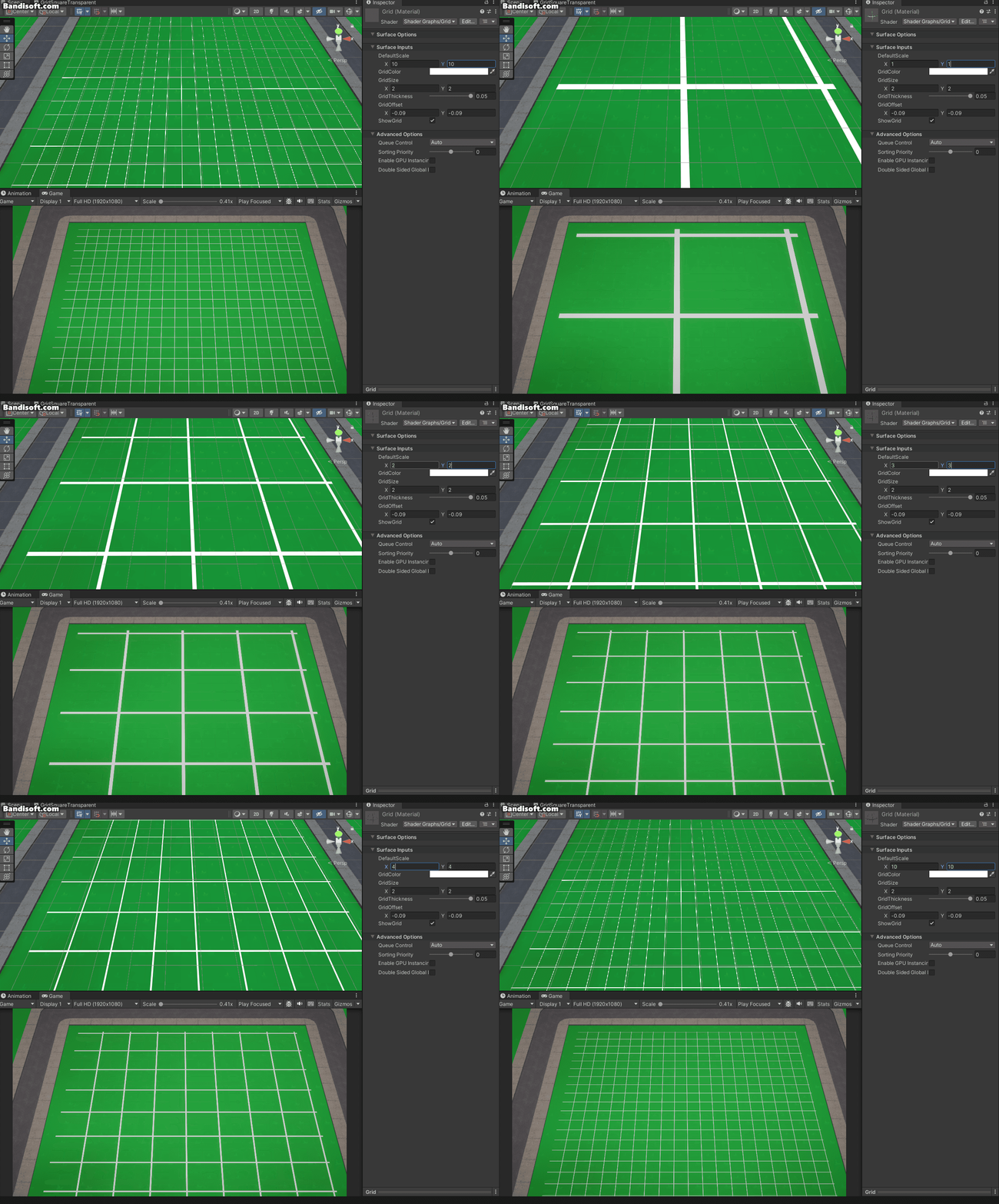
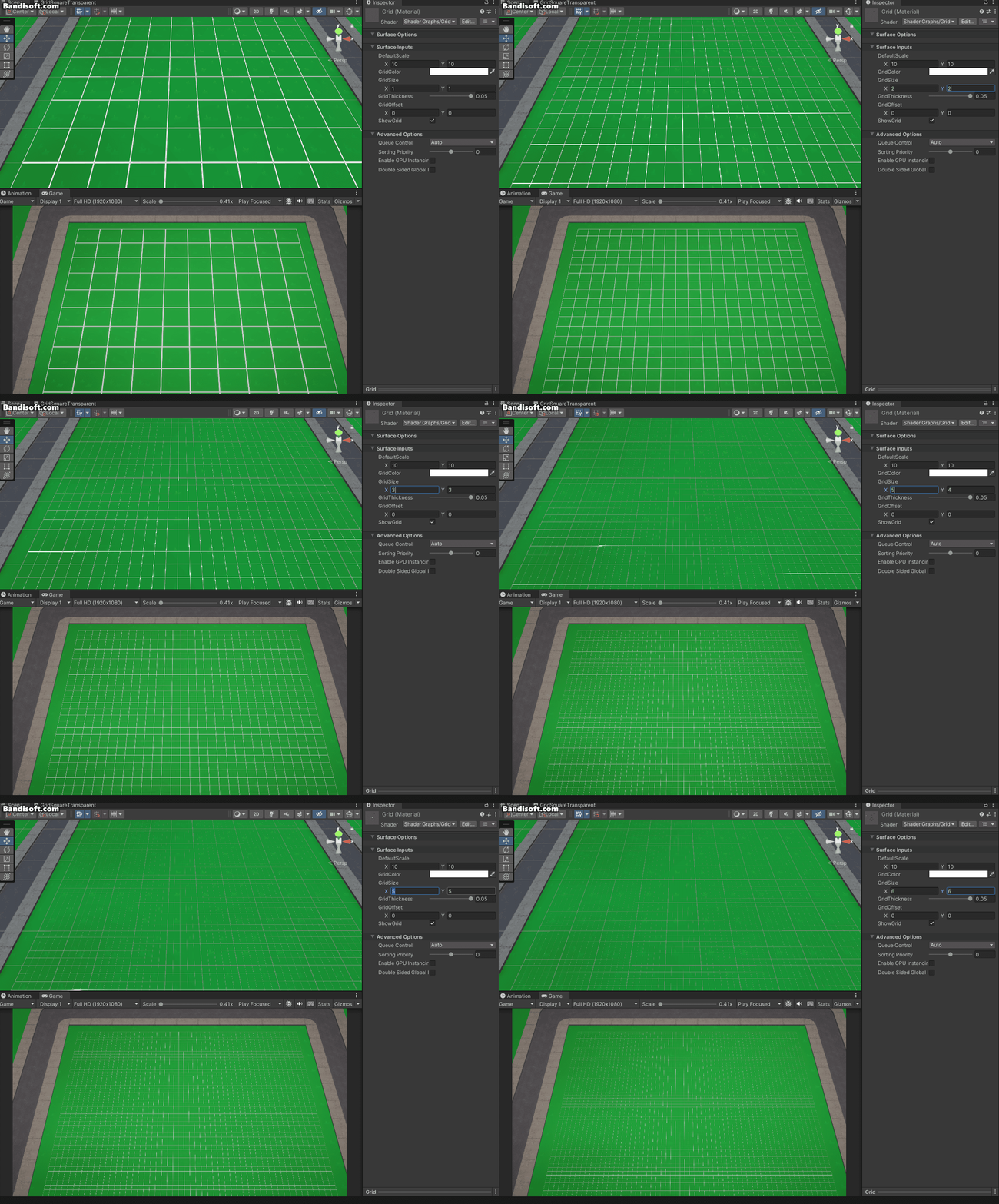
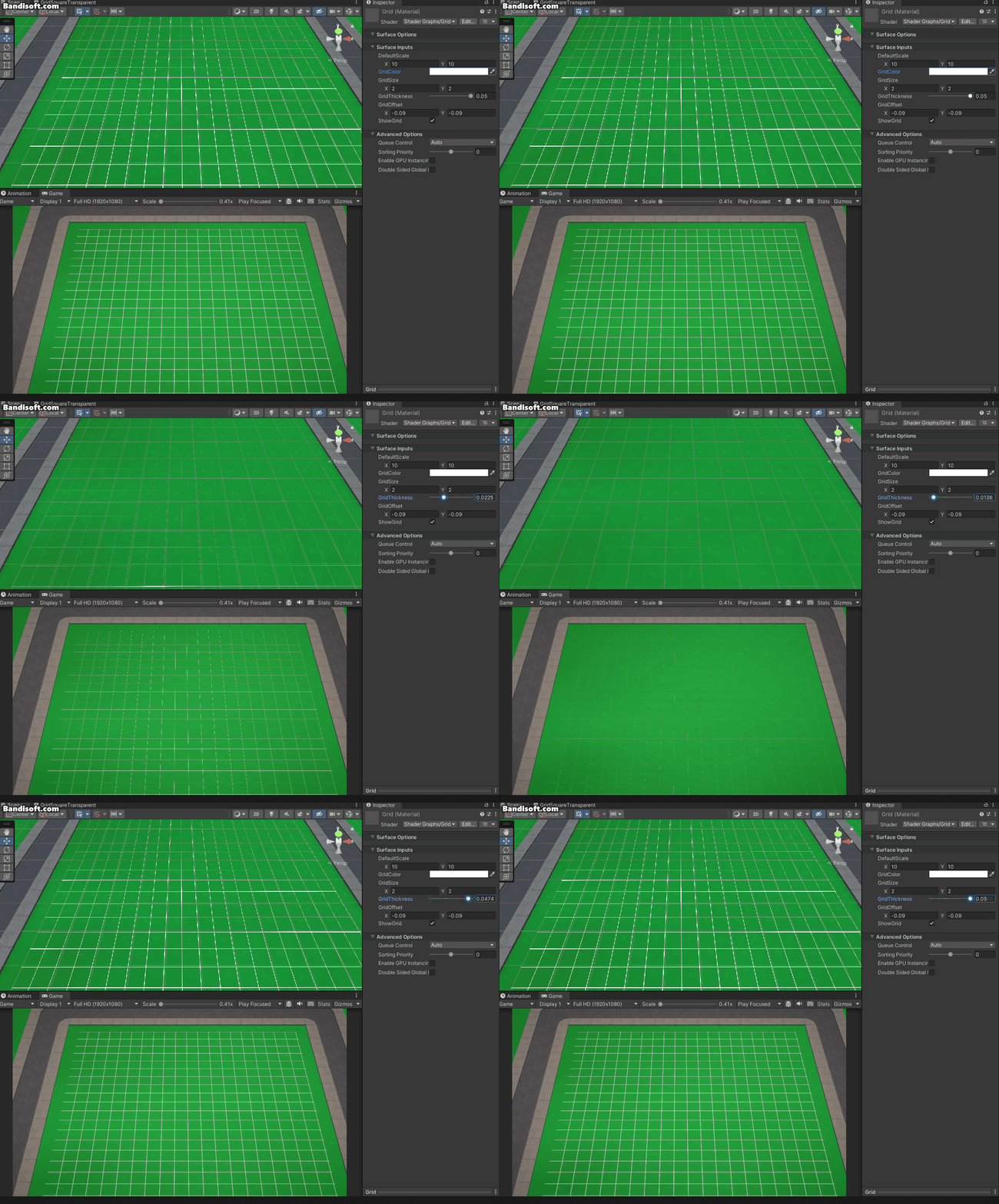
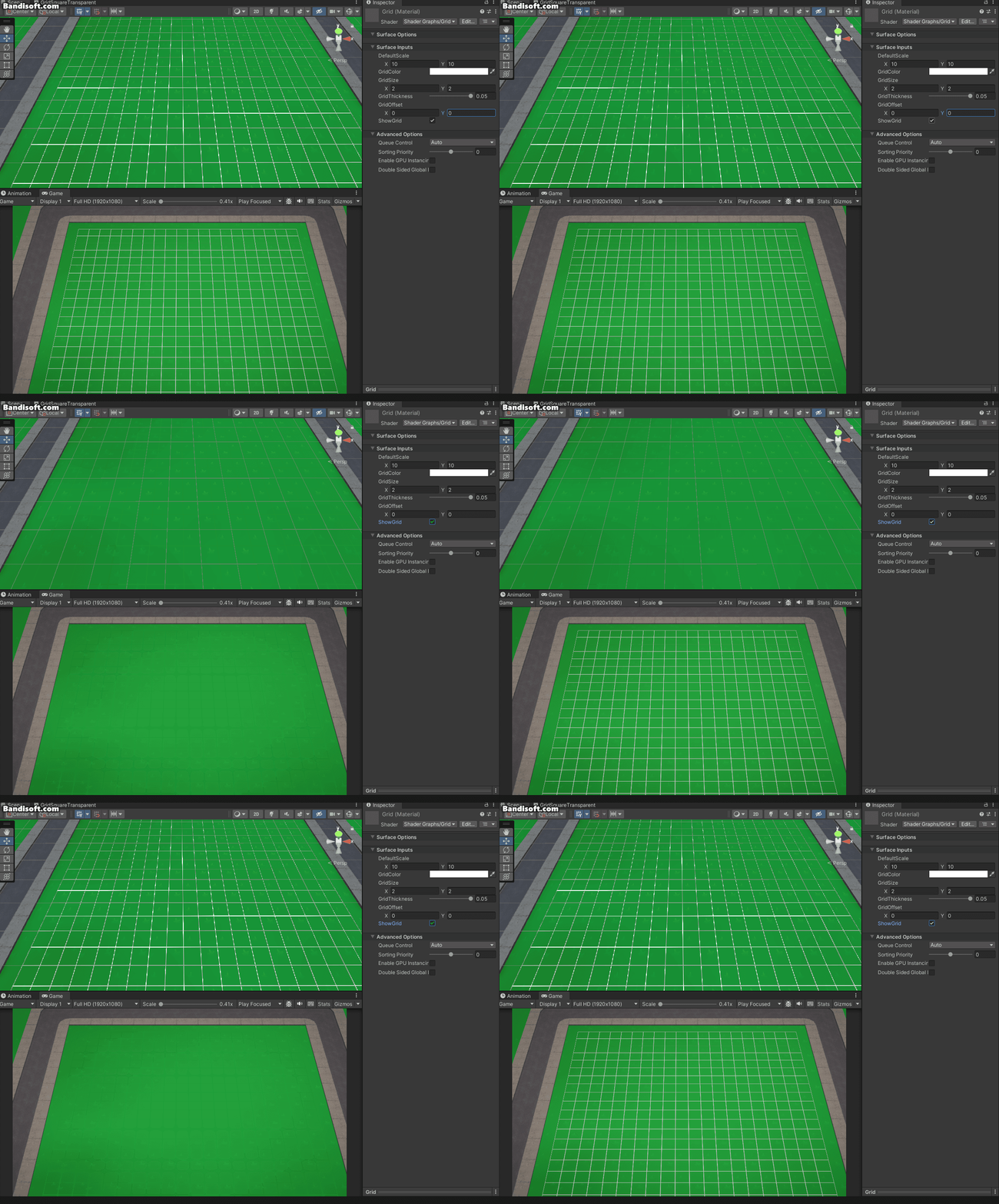
여기서 이제 그리드로 사용할 Plane을 추가하고, Plane의 Material을 그리드를 설정하는 Material로 변경해주면 다음과 같이 적용되는 것을 확인할 수 있다.
* 결과


1.5. Grid
1.6. Grid Renderer
전체 코드
using UnityEngine;

// 그리드 구성 요소와 그리드 셰이더를 연결하고 다른 스크립트가 그리드의 데이터에 접근할 수 있게 해주는 클래스
public class GridManager : MonoBehaviour
{
    [SerializeField]
    private Grid grid;

    [SerializeField]
    private Renderer gridRenderer;

    [SerializeField]
    private Vector3 gridCellSize;
    private Vector3 halfGridCellSize;

    [SerializeField]
    private Vector2Int defaultScale = new Vector2Int(10, 10);

    // 그리드의 실제 크기를 계산. gridRenderer의 로컬 스케일을 이용해 셀 수를 결정.
    public Vector2Int GridSize =>
        Vector2Int.RoundToInt(
            defaultScale*
            new Vector2(
                gridRenderer.transform.localScale.x,
                gridRenderer.transform.localScale.z)
            );

    [SerializeField]
    private string cellSizeParameter = "_GridSize", defaultScaleParameter = "_DefaultScale";

    private void Start()
    {
        grid.cellSize = gridCellSize;
        halfGridCellSize = gridCellSize / 2f;

        gridRenderer.material.SetVector(cellSizeParameter, new Vector2(1 / gridCellSize.x, 1 / gridCellSize.z));
        gridRenderer.material.SetVector(defaultScaleParameter, new Vector2(defaultScale.x, defaultScale.y));
    }

    // 월드 좌표를 그리드 셀 좌표로 변환. 엣지 배치의 경우 위치를 보정.
    public Vector3Int GetCellPosition(Vector3 worldPosition, PlacementType placementType)
    {
        if (placementType.IsEdgePlacement())
            worldPosition += halfGridCellSize;  // 엣지 배치인 경우 보정을 위해 셀 크기의 절반을 더함.
        return grid.WorldToCell(worldPosition); // 월드 좌표를 그리드 셀 좌표로 변환.
    }

    // 셀 좌표를 월드 좌표로 변환. 그리드 상에서의 시각적 위치를 결정.
    public Vector3 GetWorldPosition(Vector3Int cellPosition)
    {
        // 그리드가 조금 높게 배치되어 있기 때문에 y값을 빼줌 → 그리드가 바닥 타일 위에 표시되도록
        return grid.CellToWorld(cellPosition);
    }

    // 특정 그리드 셀의 중앙 위치를 계산.
    public Vector3 GetCenterPositionForCell(Vector3Int cellPosition)
    {
        return GetWorldPosition(cellPosition) + halfGridCellSize;
        // 셀 좌표를 월드 좌표로 변환 + 그리드 셀의 중심 위치를 맞추기 위해 그리드 셀 크기의 절반만큼 위치 보정.
    }

    // 그리드를 보이거나 숨기기 위한 기능.
    public void ToggleGrid(bool value)
    {
        gridRenderer.gameObject.SetActive(value);
    }
}

// 배치 유형 타입 => ScriptableObjects를 사용하여 객체를 생성하는 것이 더 좋을 수 있지만, 프로타입에는 열거형도 잘 작동함
public enum PlacementType
{
    None,
    Floor,
    Wall,
    InWalls,
    NearWallObject,
    FreePlacedObject
}

// 열거형을 사용하면 쉽게 추가 데이터를 더할 수 없는 제한 때문에 확장 메소드가 필요함
// 이 방법으로 열거형을 사용한 각 if/switch문장을 확인하지 않고도 추가 데이터에 안정적으로 접근할 수 있음.
public static class PlacementTypeExtensions
{
    public static bool IsEdgePlacement(this PlacementType placementType)
    => placementType switch
        {
            PlacementType.Wall => true,
            PlacementType.InWalls => true,
            _ => false
        };
    public static bool IsObjectPlacement(this PlacementType placementType)
    => placementType switch
    {
        PlacementType.FreePlacedObject => true,
        PlacementType.NearWallObject => true,
        _ => false
    };
}
using System.Collections.Generic;
using System.Linq;
using UnityEngine;
// A* 알고리즘 및 GridData 구조에서 데이터를 찾거나 확인해야 하는 기타 알고리즘을 위한 함수들
public static class GridSelectionHelper
{
public static IEnumerable<int> MoveMinToMaxInclusive(int minVal, int maxVal, int step)
{
for (int i = minVal; i <= maxVal; i += step)
{
yield return i;
}
}
public static IEnumerable<int> MoveMaxToMinInclusive(int minVal, int maxVal, int step)
{
for (int i = maxVal; i >= minVal; i -= step)
{
yield return i;
}
}
// A*를 사용하는 객체의 크기가 1x1이라고 가정
public static List<Vector3Int> AStar(Vector3Int startPos, Vector3Int endPos, PlacementGridData placementData)
{
List<Vector3Int> path = new();
List<Vector3Int> openList = new();
Dictionary<Vector3Int, Vector3Int> childParentDictionary = new();
Dictionary<Vector3Int,int> costDictionary = new();
openList.Add(startPos);
costDictionary[startPos] = ManhattanDistance(startPos, endPos);
Vector3Int currentPosition = startPos;
if(placementData.IsCellAt(endPos) == false)
return new List<Vector3Int>();
while(openList.Count > 0)
{
// 비용을 기준으로 정렬하여 가장 효율적인 경로 탐색
openList = openList.OrderBy(x => costDictionary[x]).ToList();
currentPosition = openList[0];
openList.RemoveAt(0);
// 목적지에 도달했을 때의 처리
if (currentPosition == endPos)
{
//get patern
//currentPosition = childParentDictionary[currentPosition];
//path.Add(endPos);
// 경로 역추적(부모 노드를 따라 시작점까지 이동)
while (currentPosition != startPos)
{
path.Add(currentPosition);
currentPosition = childParentDictionary[currentPosition];
}
path.Add(startPos);
path.Reverse(); // 시작점에서 끝점 순서가 되도록 뒤집기
break;
}
// 계속해서 탐색이 필요한 경우의 처리
List<Vector3Int> neighbours = FindNeighbours(currentPosition, placementData);
foreach (var neighbourposition in neighbours)
{
if (costDictionary.ContainsKey(neighbourposition))
continue;
childParentDictionary[neighbourposition] = currentPosition;
costDictionary[neighbourposition] = ManhattanDistance(neighbourposition, endPos);
if (openList.Contains(neighbourposition) == false)
openList.Add(neighbourposition);
}
}
return path;
}
private static List<Vector3Int> FindNeighbours(Vector3Int currentPosition, PlacementGridData placementData)
{
List<Vector3Int> neighbours = new();
foreach (var direction in Directions)
{
Vector3Int tempPos = currentPosition + direction;
if (placementData.IsCellAt(tempPos))
{
neighbours.Add(tempPos);
}
}
return neighbours;
}
private static int ManhattanDistance(Vector3Int startPoint, Vector3Int endPoint)
{
// 맨해튼 거리 계산 (격자 기반 이동에서 주로 사용)
return Mathf.Abs(startPoint.x - endPoint.x) + Mathf.Abs(startPoint.z - endPoint.z);
}
internal static List<Quaternion> CalculateRotation(List<Vector3Int> gridPositions)
{
List<Quaternion> returnValues = new();
for (int i = 0; i < gridPositions.Count-1; i++)
{
Vector3Int direction = gridPositions[i+1] - gridPositions[i];
// 이동 방향에 따른 회전값 계산
returnValues.Add(Quaternion.Euler(0,Mathf.RoundToInt(Vector3.SignedAngle(Vector3.right, direction,Vector3.up)),0));
}
return returnValues;
}
// 상하좌우 이동 방향 정의
public static List<Vector3Int> Directions = new()
{
new Vector3Int(1,0,0), // 우
new Vector3Int(-1,0,0), // 좌
new Vector3Int(0,0,1), // 전
new Vector3Int(0,0,-1) // 후
};
}